Proxy in WiFi: Off, Manual, and Automatic Settings Explained
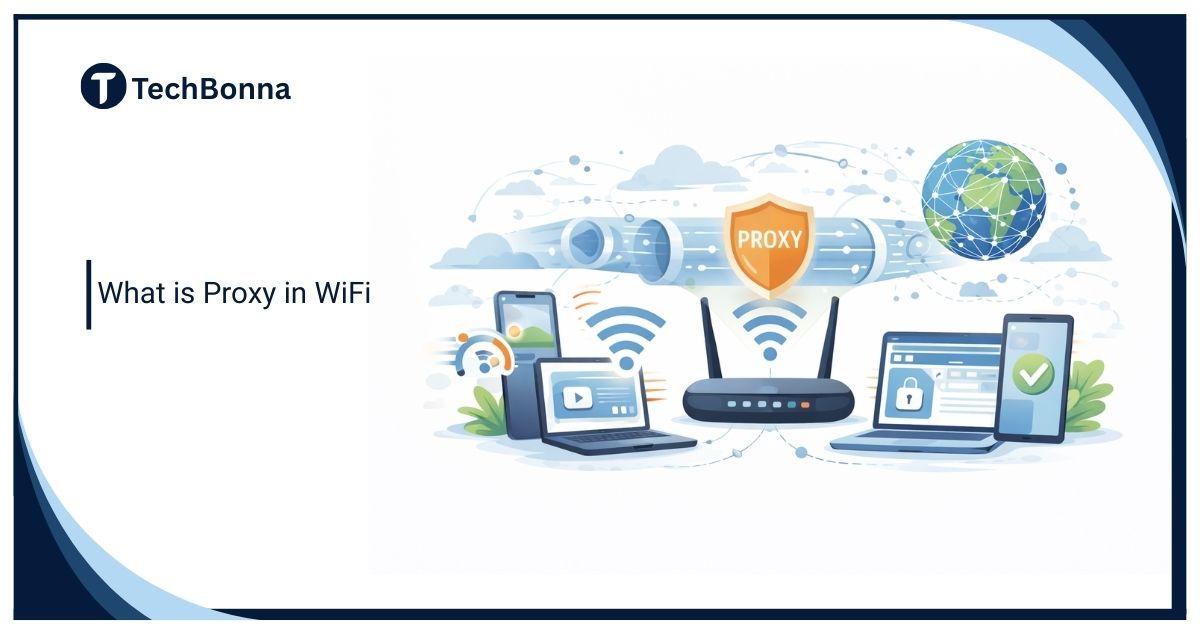
Table of Contents
If you have ever opened your WiFi proxy settings and wondered what the proxy field means, you are not alone. A proxy can affect privacy, browsing access, app behavior, and public WiFi security, but the setting is often shown with almost no explanation.
This guide explains proxy server configuration in plain American English. You will learn what a proxy does on WiFi, when to use it, when to leave it off, and how it compares with a VPN.
What it means
A proxy in WiFi is a server that sits between your device and the websites or apps you use. Instead of your phone, laptop, or tablet connecting straight to a website, your request goes through that intermediary first.
It can hide your IP address from the site you visit, apply network rules, filter content, or route traffic through a chosen host. It does not automatically encrypt everything like a VPN, and it may not cover every app on your device. Treat proxy in WiFi as one part of a wider privacy and security setup.
Should Proxy in WiFi Be Off, Manual, or Automatic?
For most home WiFi users, the proxy setting should stay Off. Turn it on only when you have a trusted reason, such as workplace instructions, school rules, testing needs, or a provider-managed setup.
| Setting | What It Means | Best Use |
|---|---|---|
| Off | Your device connects normally without a proxy for that WiFi network. | Daily home browsing. |
| Manual | You enter the proxy host, port, and login details yourself. | Work, school, testing, or a trusted provider. |
| Automatic | Your device uses a setup script or auto-configuration file. | Managed networks with admin instructions. |
If you do not recognize the server details, do not enter them. A random public proxy can create more risk than it solves.
What Proxy in WiFi Means
When someone asks what proxy in WiFi means, they are usually asking about the proxy setting inside a network menu. That setting tells your device to send supported web traffic through an intermediary before it reaches the internet.
Think of the proxy as a front desk. Your device asks the front desk for a page, the front desk requests it from the web server, and the response comes back through the same path. In that flow, the website may see the proxy IP address instead of your home or public WiFi network address.
The key point is simple: WiFi is the connection, while the proxy is the routing rule that changes how some internet requests leave your device.
What WiFi Proxy Settings Can and Cannot Do
WiFi proxy settings can be useful, but they are not complete protection by themselves. Before changing the setting, understand the limits:
- They may affect browsers and apps that follow system proxy settings.
- They may not affect every app on your phone, tablet, or laptop.
- They can hide your IP address from many destination websites.
- They do not automatically encrypt all device traffic.
- They do not hide your identity from accounts you log into.
- They may still leave location signals through DNS, cookies, browser settings, or account data.
In short, proxy settings are routing settings. They can support privacy, filtering, and testing, but they should not be treated as a full security product.
How Proxy Servers Work on WiFi
The intermediary receives a request, checks the rules attached to that request, then forwards it to the destination. Those rules can be simple, such as using a manual setup for web browsing, or more controlled, such as a school network that blocks certain sites.
The IETF HTTP Semantics section on proxies describes a proxy as an intermediary that can forward, transform, or handle messages between clients and servers. In everyday terms, it is a managed stop between your device and the website.
Here is the usual connection path:
- Your device connects to a WiFi network.
- Your WiFi proxy settings tell the browser or app which host and port to use.
- Matching traffic goes through the proxy.
- The gateway requests the page or file from the website.
- The response returns through the same route.
This is why a proxy setup can help with filtering, testing, caching, or basic IP masking. It is also why a bad configuration can break websites or stop apps from loading.
When to Use Proxy in WiFi on Public Networks
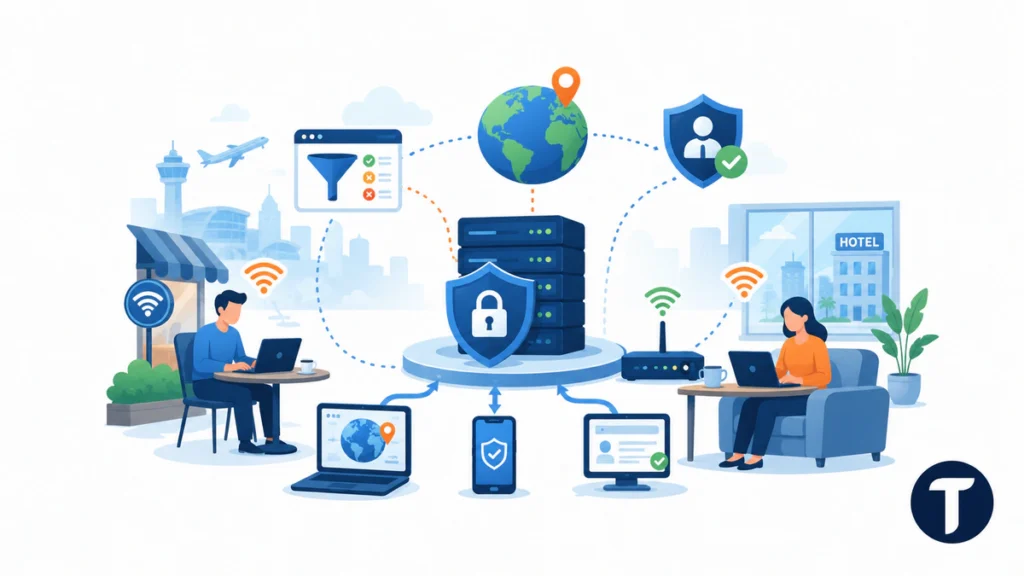
You should use proxy in WiFi only when there is a clear job for it.
The best use case is controlled routing, not blind trust. For example, a company may use a provider to apply content rules, log approved access, or route traffic from office devices through one reviewed point.
Common reasons to use a proxy include:
- Public WiFi security support: Route selected traffic through a trusted server, but do not treat this as full public WiFi protection.
- Content filtering: Help schools and workplaces block unsafe, distracting, or noncompliant websites.
- Web testing: Check how a website behaves from another region or network path.
- Privacy: Hide your IP address from basic website logs, ads, and trackers.
- Network performance: Cache common web content where the gateway supports it.
A proxy may help with routing on hotel, airport, or cafe networks, but it does not automatically secure sensitive activity. For banking, work tools, or private logins, use HTTPS and consider a reputable VPN.
Public proxies can be risky because you do not control who runs them or how they handle logs. Choose a reputable provider and understand what is stored, filtered, or forwarded.
Types of WiFi Proxy Settings You May See
Not every type works the same way. Some routing types handle only web browsing, while others can route more app traffic.
| Proxy Type | What It Does | Best Fit |
|---|---|---|
| HTTP Proxy | Routes web traffic through a proxy server. | Basic browsing, filtering, and web access control. |
| SOCKS Proxy | Handles more traffic types than an HTTP gateway. | Apps, testing, and advanced network use. |
| Transparent Proxy | Works without the user manually setting a proxy. | Schools, offices, and managed networks. |
| Residential Proxies | Use IP addresses associated with real residential networks. | Legitimate QA, localization testing, and market research. |
Most home users only need to understand whether their wireless setting is off, automatic, or manual.
How to Configure WiFi Proxy Settings
Before you configure proxy settings, make sure you trust the server details you were given. The intermediary can see connection metadata, and in some cases it may see unencrypted traffic.
Only enter the connection details from a workplace, school, trusted provider, or device administrator. Random public proxy lists are not a safe shortcut.
Windows
- Open Settings, then Network & Internet, then Proxy.
- Choose automatic setup if your network gave you a script.
- For a manual setup, enter the host and port.
- Save the setting, then restart the browser if pages do not reload.
macOS
- Open System Settings, then Network.
- Select Wi-Fi, then open the details for your connected network.
- Go to Proxies and choose the routing type.
- Enter the host, port, username, and password if required.
iPhone and iPad
- Open Settings, then Wi-Fi.
- Tap the information icon beside your network.
- Scroll to Configure Proxy.
- Select Off, Manual, or Automatic.
Apple’s March 2025 network setup instructions confirm that the Wi-Fi information screen can be used to set an HTTP proxy during iOS setup. The exact menu path can vary outside Setup Assistant, so users should follow the instructions for their current iOS version or a managed-device profile.
Android
- Open Settings, then Network & Internet.
- Tap your wireless network and choose the edit option.
- Open advanced options.
- Set the proxy configuration to manual or automatic, then enter the server details.
If your device cannot connect to the internet after setting a proxy, turn the setting off and test again. To configure your proxy later, return to WiFi proxy settings and use the values supplied by the administrator or provider.
Proxy vs VPN: Which One Fits the Job?
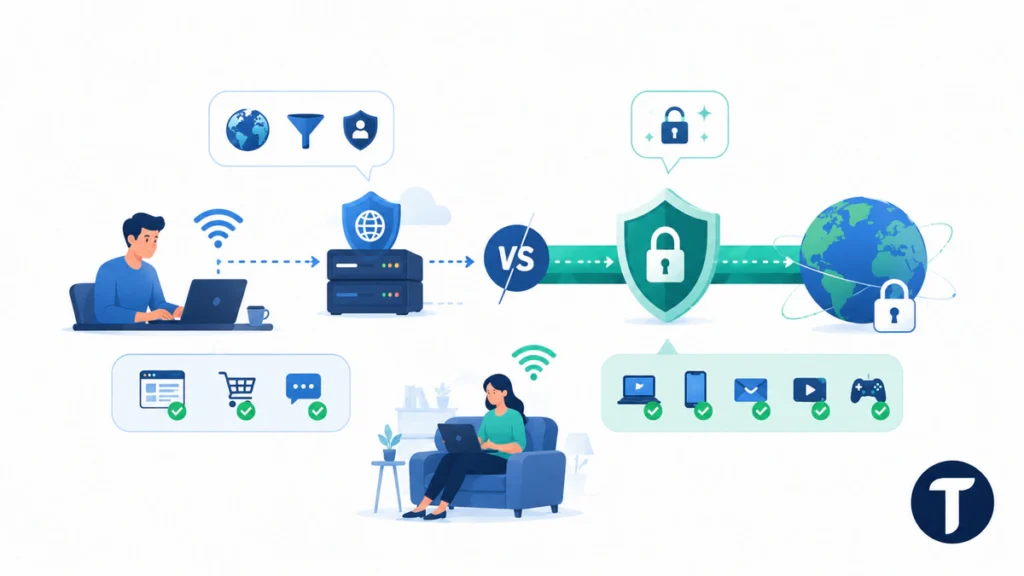
A proxy and a VPN can both change what a website sees, but they are not the same tool. A proxy usually handles selected traffic. A VPN normally encrypts the whole device connection and routes it through a VPN server.
| Need | Proxy | VPN |
|---|---|---|
| Change visible IP for browser traffic | Good | Good |
| Encrypt full device traffic | Usually no | Usually yes |
| Public WiFi protection | Limited | Stronger |
| App-by-app routing | Sometimes | Sometimes |
| Workplace or school filtering | Common | Less common |
That proxy vs VPN difference matters on public WiFi. If you are only changing a browser route for testing, a proxy can be enough. If you are protecting login sessions, banking, work tools, or sensitive browsing, a VPN is usually the stronger choice.
Free VPNs can also create privacy tradeoffs, so do not choose one based only on price. If you are comparing options, read about whether free VPNs are safe or if they put your data at risk before trusting a free service with sensitive traffic.
Use a proxy for routing and access control. Use a VPN when encryption across the full connection is the main requirement.
Common Proxy in WiFi Issues and How to Fix Them
Most connection issues come from incorrect details, blocked ports, weak authentication, or a server that is down.
- Pages will not load: Check the host, port, username, and password.
- Only some apps fail: The app may not support your routing type.
- Everything is slow: Test without the proxy, then try a different provider or region.
- Sites still see your location: Your browser, DNS, or account profile may reveal location signals.
- Work network keeps turning it back on: The device may be managed by company policy.
Do not keep changing random connection settings without writing down the original values. If this is a school or workplace device, ask the administrator before bypassing a required setup.
How to Check Whether Proxy in WiFi Is Working
After using a proxy server, test a normal website, a secure login page, and an IP lookup page. If it is working, the IP address of the proxy should appear instead of the address assigned to your device.
For manual proxy configuration, enter the proxy server host, proxy hostname, server IP if supplied, and port exactly as written. On some devices, the field may say proxy server settings, proxy server for Wi-Fi, or enter the proxy server.
This is why proxy in WiFi is really a trust question. Configure one only when the source is known, and avoid random lists even if they promise a Wi-Fi proxy, public proxy servers, or faster browsing.
FAQs About WiFi Proxies
Is a Proxy in WiFi Safe?
A proxy can be safe if it is run by a trusted provider, employer, school, or administrator. Unknown open proxy lists are risky because they may log traffic, inject ads, or fail without warning.
Should Proxy Be Off or Automatic on WiFi?
For most home users, it should be off. Use automatic only when your school, workplace, provider, or administrator gives you a setup script.
Do I Need a Proxy for Home WiFi?
Most home users do not need one for daily browsing. You may set up a proxy server for parental controls, filtering, testing, privacy, or a specific app requirement.
Can a Proxy See My Passwords?
A proxy may see connection metadata and unencrypted traffic. Secure HTTPS websites protect the contents of the session better, but you should still avoid unknown servers.
Why Does My Internet Stop Working When Proxy Is On?
The host, port, login, or setup script may be wrong, offline, or blocked.
What Is the Main Proxy vs VPN Difference?
The main proxy vs VPN difference is coverage. A proxy usually routes selected browser or app traffic, while a VPN usually encrypts and routes the full device connection.
The takeaway
A proxy can be helpful when you know why you are using it. It can hide your IP address, apply filtering rules, and route browsing through a controlled server.
For most readers, the safest approach is simple: leave WiFi proxy settings off unless you have a trusted reason, treat proxy server configuration as a security decision, and use stronger tools when public WiFi security is the real concern. When privacy and encryption matter most, the proxy vs VPN choice usually points to a reputable VPN.