What to Check Before You Buy Windows RDP Online
Table of Contents
Introduction
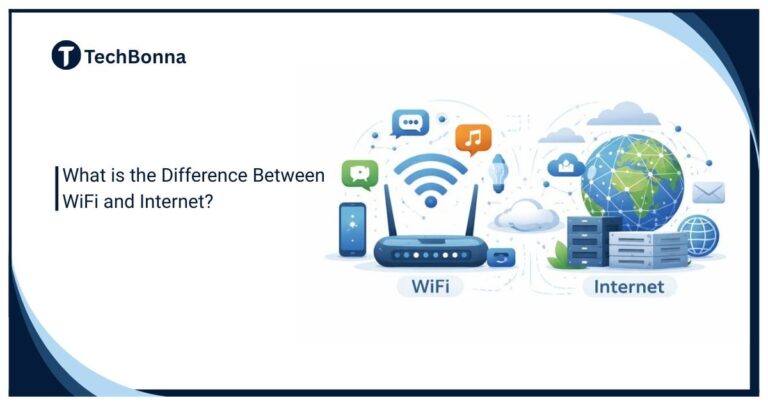
Buying remote desktop access can save time, simplify Windows-based work, and give teams a persistent desktop in the cloud. Before you buy Windows RDP online, you need to understand Windows RDP security, plan fit, and the RDP server requirements that affect speed, access, and reliability.
A good provider should make the basics clear before checkout. That includes admin rights, CPU and RAM, storage, location, operating system version, backup options, acceptable use rules, and support if something breaks.
Quick Answer
Before you buy Windows RDP online, check the provider’s security controls, server resources, admin access, Windows licensing, data center location, uptime policy, support response times, backup options, and upgrade path. Choose a plan that matches your workload, not just the lowest monthly price. Good Windows RDP security and realistic RDP server requirements matter more than a cheap checkout page.
What Windows RDP Means For Buyers
Windows RDP usually means remote access to a Windows desktop or Windows server through Remote Desktop Protocol. You connect from your own computer, then use a remote Windows environment as if you were sitting in front of it.
Some plans are closer to a shared remote desktop. Others are Windows VPS plans with full administrator access. That difference matters because it affects what you can install, how much control you have, and whether other users share the same underlying server.
Microsoft describes Remote Desktop Services as a platform for delivering managed desktops and apps from centralized hosts in its Microsoft Remote Desktop Services overview. That centralization is useful, but it also means the provider’s configuration becomes part of your own risk and performance profile.
Key Checks Before You Choose A Provider
If you are ready to buy Windows RDP, start with the practical checks that affect day-to-day use. Confirm whether the plan includes dedicated or shared resources, the Windows version, administrator access, allowed software, server location, bandwidth limits, and how quickly the server is delivered.
Do not judge an RDP plan only by price. A cheap plan can become expensive if it has overloaded hardware, slow support, unclear usage rules, weak security controls, or no clean upgrade path. Ask what happens if you need more RAM, more storage, another user, or a different server location later.
Why Windows RDP Security Matters
Remote desktop access is powerful because it opens a Windows environment from anywhere. That same convenience also creates risk if the provider exposes weak logins, outdated systems, or poorly protected RDP access.
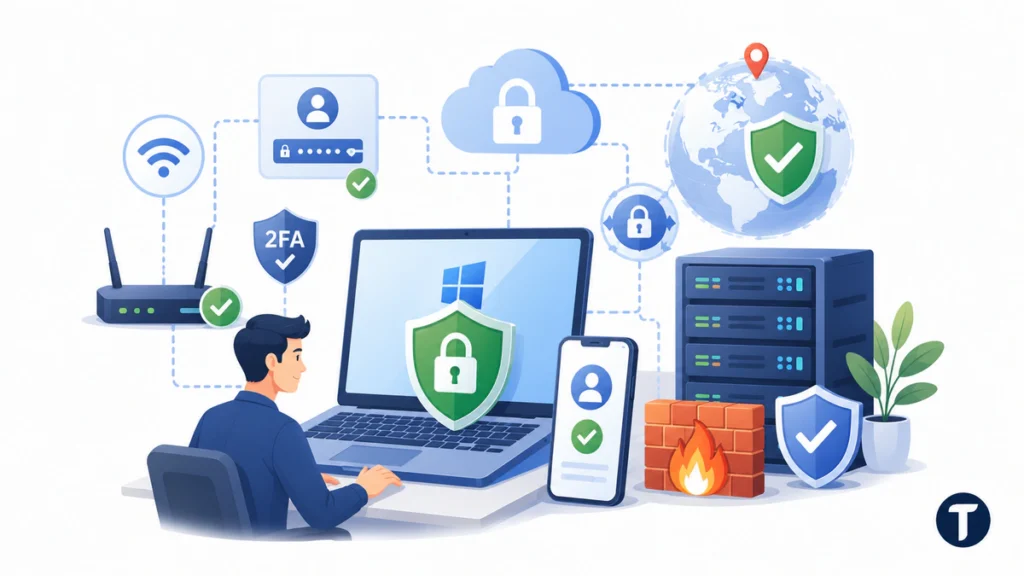
At minimum, Windows RDP security should include strong passwords, Network Level Authentication, firewall controls, patched Windows Server builds, encrypted connections, and clear abuse monitoring. If the provider offers multi-factor authentication, IP allowlisting, or access through a gateway or VPN, those are stronger signs than vague promises about secure servers.
Avoid providers that only hand over an IP address, username, and password with no firewall rule, access restriction, gateway, VPN option, or hardening guidance.
If you plan to connect from public Wi-Fi or travel networks, it is also worth checking whether free VPNs are safe before relying on a VPN as part of your remote-access setup. Basic RDP access may be enough for low-risk use, but weak access controls are not enough for sensitive business work.
You should also think about your own habits. Do not reuse passwords, store sensitive files without a backup plan, or leave admin sessions open unnecessarily. Even a well-managed server can be weakened by poor account hygiene.
How To Match Resources To Your Workload
RDP server requirements depend on what you plan to run. Light browsing, file management, and basic administrative tasks need fewer resources than trading tools, development environments, automation software, or multiple browser profiles.
For simple use, a small CPU and RAM allocation may be enough. For heavier software, choose more RAM, faster storage, and a data center close to the services you use most. If the plan has shared CPU, performance may vary during busy periods, so ask whether dedicated CPU options are available.
Storage also matters. Solid-state storage usually feels faster than older disk-based storage, especially when Windows updates, browser caches, and app installs are involved. Check whether storage can be expanded without rebuilding the server. If the plan mentions NVMe or NVMe SSD storage, confirm how much space is included and whether backups count against that limit.
Before you buy Windows RDP, list your RDP server requirements in plain terms: apps, users, browser profiles, storage, uptime needs, and the location you prefer.
Windows VPS, RDP VPS, And Dedicated Server Options
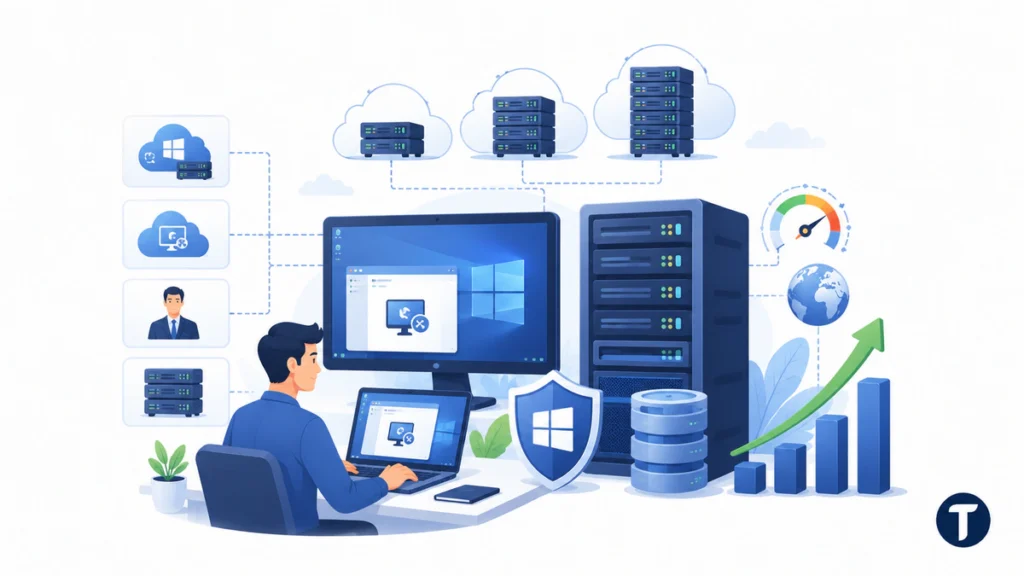
A Windows VPS is a virtual private server running Windows. An RDP VPS is usually a Windows VPS configured for remote desktop access. Some hosts also sell RDP VPS hosting, Windows VPS hosting, admin RDP plans, and dedicated server plans for heavier workloads.
A virtual server or VPS server is usually enough for ordinary remote work, automation tools, browser sessions, and light server management. A dedicated server may be better for high-performance RDP, heavy software, multiple RDP users, or workloads that need consistent CPU performance.
Check whether the provider offers Windows Server 2022, Windows Server 2025, or another supported Windows Server version. Also confirm whether you get a control panel, full admin access, and enough bandwidth for your use case. Some plans advertise 1Gbps or 10Gbps USA connections, but real speed still depends on routing, data center load, and your own connection.
A good provider should make upgrades simple. You should be able to scale resources, add storage, increase RAM, or move to a larger VPS hosting plan without losing your desktop environment.
Admin Access And Software Control
Full administrator access gives you more control over installs, settings, services, firewall rules, and Windows updates.
However, admin access also gives you more responsibility. If you change system settings, disable protections, or install risky software, you can damage the environment or create security issues. Choose managed support if you want help maintaining the server rather than handling every configuration yourself.
Licensing, Acceptable Use, And Compliance
A legitimate Windows RDP provider should be clear about licensing and acceptable use. If a plan is extremely cheap and the provider avoids questions about Windows licensing, that is a warning sign before you buy Windows RDP.
For multi-user Windows Server environments, ask whether the plan includes proper Windows Server licensing and any required Remote Desktop Services Client Access License coverage for your user setup.
Read the acceptable use policy before buying. Some providers restrict email sending, scraping, high-resource automation, cryptocurrency activity, bulk account creation, or software that creates abuse complaints. Violating those terms can lead to suspension without much warning.
For business use, consider data handling. If client data or regulated information will touch the remote desktop, check whether the provider can support your compliance needs. Many low-cost RDP plans are not designed for regulated workloads.
Location, Latency, And Uptime
Server location affects latency. If you connect from the United States to a server in Europe or Asia, the desktop may still work, but it can feel less responsive. Choose a location close to your users or close to the platform you need to access.
Uptime claims need context. A provider may advertise high uptime, but you should still check whether there is a service level agreement, maintenance notice process, and support channel for outages. For important work, backups and fast replacement matter as much as the headline uptime number.
Also check whether the provider offers snapshots or backup options. Remote desktops can fail, and Windows environments can be corrupted by updates, misconfiguration, or conflicts. A recoverable setup is safer than a cheap setup with no restore path.
Support And Delivery Expectations
Fast delivery is helpful, but support quality matters more over time. Before you buy Windows RDP, check whether support is available by ticket, live chat, or email. Look for clear response expectations, not just a contact form.
Keep your first order modest if you have not used the provider before. Test speed, stability, support, security, and account controls. If the experience is reliable, you can upgrade or order additional servers with less risk.
Plan Features Worth Comparing
Look beyond the checkout page. Useful features include instant setup, a clean control panel, clear bandwidth limits, support for RDP connections from different devices, and instructions for each RDP client you plan to use.
For United States workloads, compare USA RDP, RDP USA, and US data centers by actual location. Low latency is more important than a marketing phrase.
For performance-focused users, check whether the provider sells high-performance RDP servers, AMD EPYC CPUs, NVMe SSD storage, and enterprise-grade infrastructure. Match those features to your workload instead of choosing a plan because it sounds premium.
Payment and plan flexibility can also affect your decision. Some buyers want monthly billing, simple renewal options, or a clear way to move from basic VPS solutions to larger VPS servers. If a page advertises buy cheap RDP or buy cheap Windows access, compare the limits carefully before relying on it for business use.
A secure Windows environment should support encrypted RDP, firewall controls, and straightforward server management. A smooth remote desktop experience depends on stable resources, Windows RDP security, reliable deployment, and efficient remote access rather than just the lowest price.
Red Flags When Buying Windows RDP Online
Be cautious if a provider has no company information, no support policy, copied website content, unrealistic pricing, unclear refund terms, or unclear plan resources. Also avoid sellers who advertise RDP access for spam, account abuse, or other questionable activity.
Another red flag is missing security information. Providers do not need to publish every internal control, but they should clearly explain how accounts are delivered, how credentials are handled, what happens after abuse reports, and how customers can secure access.
Finally, watch for vague unlimited claims. Unlimited bandwidth, unlimited use, and unlimited resources usually have hidden limits. Read the fair use terms before relying on those claims for business work.
Frequently Asked Questions About Windows RDP
Is Cheap Windows RDP Safe?
Cheap Windows RDP can be safe for basic tasks if the provider is transparent about resources, licensing, security, support, and fair use rules. Very low prices are risky when they come with shared resources, weak security controls, or unclear terms.
What RDP Server Requirements Do I Need?
The right RDP server requirements depend on your workload. Basic browsing and file management may only need modest CPU, RAM, and storage. Development tools, trading apps, automation software, multiple users, or several browser profiles usually need more RAM, faster storage, and better CPU consistency.
Can I Use Windows RDP On Mac, Linux, Or Mobile Devices?
Yes. Most users connect through Microsoft Remote Desktop clients or compatible remote desktop clients for macOS, Linux, iOS, Android, and Windows. Check the provider’s setup instructions before buying if you need access from a non-Windows device.
Do I Need Full Admin Access Before I Buy Windows RDP?
You need full admin access if you want complete control over software installation, firewall settings, Windows services, and server environment changes. If you only need a stable Windows desktop for routine tasks, a managed RDP service may be easier.
What Is The Difference Between Secure RDP And Basic RDP?
Secure RDP usually includes stronger account controls, encrypted RDP sessions, firewall rules, updated Windows builds, and restricted access. Basic RDP may only provide a username, password, and IP address, which is not enough for sensitive business use.
Final Buying Checklist
Before you order, confirm the Windows version, CPU, RAM, storage type, server location, administrator access, allowed use, backup options, upgrade path, support channel, and refund terms. Save the welcome details securely and change default passwords immediately if the provider allows it.
The best choice is the provider that fits your workload with clear terms and predictable support. When you buy Windows RDP, prioritize Windows RDP security and realistic RDP server requirements over the cheapest advertised price.