Is WiFi the Same as Internet? Let’s Untangle the Web
Table of Contents
Many people use WiFi and internet as if they are internet the same thing, but they are different parts of one home setup. Understanding the difference helps when a device says it is connected, yet pages still will not load.
This guide explains Wi-Fi vs internet, what WiFi connected no internet means, and how home network troubleshooting can quickly find the broken link. It also consolidates TechBonna’s overlapping coverage into one evergreen WiFi and internet guide.
The short explanation
WiFi is the local network that lets a phone, laptop, smart TV, or desktop computer reach your router. The internet is a global network that your provider connects you to through a modem, cable, fiber internet line, or cellular service.
You can have WiFi without internet if your device joins the local wireless network but the outside service is down. You can also use the internet without WiFi through Ethernet, mobile data, or another wired connection.
The Simple Network Diagram
Use this basic diagram when you want a clear picture of the route:
Connected device → WiFi network → router or access point → modem → internet service provider → website or app
The first part is local. The later part reaches beyond your home. If your device cannot reach the first box, fix the local wireless connection. If the first boxes work but nothing loads online, test the outside internet connection.
A strong signal does not prove that you can access the internet. It only shows that your device can hear the local equipment.
What Wi-Fi Actually Does
Wi-Fi is a wireless technology. It lets home devices connect to the same local area network without an Ethernet cable. The Wi-Fi Alliance explains Wi-Fi as technology used across homes, businesses, schools, health care, transportation, and public spaces.
A WiFi network can work inside your house even when internet access is unavailable. You may still print wirelessly, cast to a speaker, open a file from network storage, or reach a local smart-home hub. Those tasks stay inside the home network.
Performance depends on distance, walls, interference, device age, wireless router quality, and the band in use. The 2.4 GHz band usually travels farther. The 5 GHz band is often faster nearby. Wi-Fi 7 and 6 GHz equipment can help supported devices, but placement still matters.
What the Internet Actually Does
The internet is a global connection between networks, services, and servers. More simply, internet is a global network that lets you open websites, stream video, join video calls, play online gaming sessions, send email, use cloud storage, and run business apps.
There is more than one type of internet connection. You might use cable, DSL, fiber internet, fixed wireless internet, satellite, mobile data, or 5G home internet. Most homes then share that service through wired and wireless connections.
When you use a browser to edit photos online easily, the work happens through a web service outside your house. That requires internet services, not just a local Wi-Fi signal.
Why People Mix Up WiFi and Internet
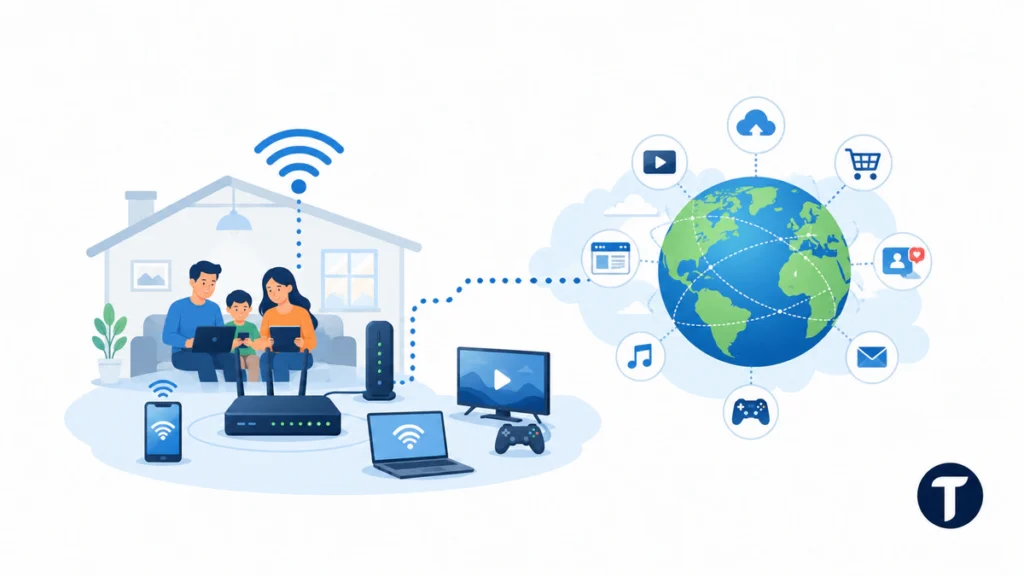
WiFi and internet are often used interchangeably because most people experience them together. You tap a WiFi name, enter a password, and then use the internet. It feels like one step.
The key difference is location. WiFi works around you. The internet reaches beyond you. A local connection gets your device to the equipment in your home, while an internet connection is required to reach online services.
Another reason for confusion is device language. Phones may say “connected without internet,” “no internet access,” or “unsecured network.” Those alerts usually mean the local network joined successfully, but access to the internet failed.
What’s the Difference in Everyday Use?
What’s the difference in everyday Wi-Fi and internet use? Wi-Fi handles nearby access, and the internet handles the outside route. Wi-Fi is a wireless networking technology that gives wireless access to your local equipment. The internet is the wider path that carries traffic via the internet to remote websites and servers.
Internet vs WiFi confusion usually starts when devices connect to the internet through a wireless name. That makes the two feel identical. The key difference is that devices connect to the router first, then the router reaches the outside service.
Reliable internet needs both sides: a good local signal and a working provider connection.
WiFi Connected but No Internet: What It Means
WiFi connected no internet means your device joined the wireless network, but the network could not connect to the internet. The cause may be a provider outage, bad cable, frozen DNS fault, login page, account issue, or one device setting.
Try this order:
- Check whether other connected devices can load the same website.
- Turn off WiFi on your phone and test mobile data.
- Restart the modem and router, then wait a few minutes.
- Try one Ethernet cable test if a laptop or desktop computer is available.
- Look for a hotel, airport, or cafe login page on public Wi-Fi.
- Forget the network and join again if only one device fails.
- Check the provider app or outage page from mobile data.
If a wired device works but wireless fails, focus on Wi-Fi. If both fail, focus on the modem, provider, cable, or service account.
Modern Examples That Make the Difference Clear
A smart TV may buffer because the wireless signal in the living room is weak, even though the internet plan is fast. A desktop plugged into Ethernet may stay online while the WiFi name disappears. A phone on mobile data may work while every home device fails because the provider has an outage.
Public networks are another common example. A cafe may let you use WiFi first, then require a browser login before it grants internet access. In that case, the WiFi connection is real, but the internet session has not started.
That sign-in page has a formal name and a documented design. RFC 8952 describes the IETF architecture for captive portals, in which the network deliberately places a device in a restricted state and only lifts the restriction once the user has completed the portal step. It is a useful reminder that the block is a policy decision on the network, not a fault in your device.
Differences Between Wi-Fi and Internet in Common Setups
The phrase Wi-Fi and the internet describes two connected services, not one service. In internet and Wi-Fi setups, Wi-Fi moves data inside the building, while internet access moves data outside the building.
A laptop plugged into the modem may use internet through a wired path. A phone may connect your phone to the internet through a wireless path. Both can reach the same server, but they use different local access methods.
Use WiFi when you need convenience around the home. Use a wire when stability matters. Wired and wireless connections can share the same provider plan, the same modem, and the same internet speed.
This is helpful to know the difference because a device to the internet path can fail in several places. Fiber internet can be active, but a bad local setting can still block access to the internet.
Quick Troubleshooting Matrix
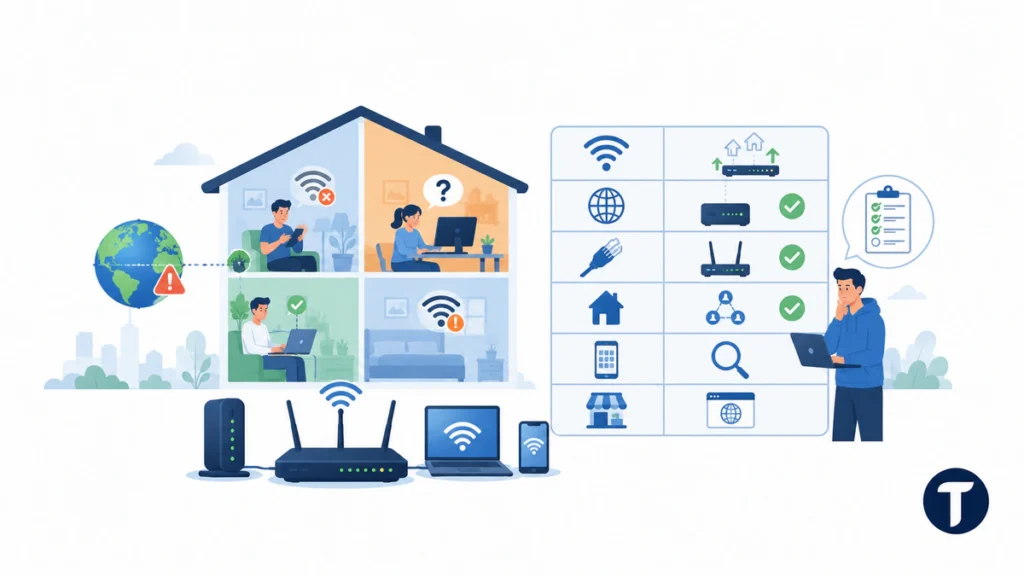
Use this matrix before replacing equipment:
- Weak WiFi bars: move closer, reduce interference, lift the access point higher, or add a mesh node.
- No internet on every device: check modem lights, provider outage status, power, and billing.
- Ethernet works but wireless fails: check router Wi-Fi settings, band steering, password, and firmware.
- One room fails: check walls, distance, mesh placement, and neighboring networks.
- One app fails: check the app status page or try a different network.
- Only public Wi-Fi fails: open a browser and look for the captive portal page.
Good home network troubleshooting, and practical WiFi and internet troubleshooting, moves from broad to narrow: whole house, one room, one device, then one app. That pattern prevents wasted time.
For a quick WiFi and internet checklist, write down where the failure appears. If the alert is WiFi connected no internet, test another device before changing settings. If the pattern keeps repeating, a simple home network troubleshooting note can show whether the issue follows one room, one device, or the whole connection.
That same WiFi and internet log helps when you call support. Say whether you saw WiFi connected no internet, whether Ethernet worked, and which home network troubleshooting tests already passed.
Where Ethernet, Mesh, and Mobile Data Fit
Ethernet is a wire-based connection. It can be more stable for gaming, video calls, smart TVs, and office work because it avoids radio interference. If Ethernet works, your internet plan may be fine while the local wireless side needs improvement.
Mesh systems spread wireless access across a larger space. They help when coverage is the problem, but they do not create a faster provider service. A mesh node too far from the main unit may repeat a poor signal.
Mobile data is a useful comparison. If a website works on cellular data but fails at home, your local setup or provider route may be the issue. If it fails everywhere, the website may be down.
Wireless Connection Types and Internet Plans
A Wi-Fi network is best for everyday mobility. Wi-Fi is a local connection, while an ISP sells the outside service. Internet plans set the speed coming into a home or business, but local wireless placement decides how well that service reaches each room.
WiFi connects a device to local equipment first. In other words, it allows your devices to connect nearby before they go online. You might connect your device, connect to a Wi-Fi network, then open a web page through the provider line.
A device may be connected to your Wi-Fi and still fail if it cannot connect to the internet without a working provider route.
Common Setup Mistakes
A router hidden behind furniture, under a desk, near thick walls, or beside other electronics can weaken the wireless signal. A loose coax, Ethernet, or fiber cable can break the provider side. Old firmware can also cause random drops.
Another mistake is buying a faster internet plan when coverage is the real issue. If the signal is poor upstairs, a new plan may not help. If coverage is strong but speed tests are low beside the router, the provider service or gateway may deserve more attention.
It is also helpful to know the difference between an internet plan and Wi-Fi equipment. The plan controls the service coming into the home. The equipment controls how that service is shared around the home.
How to Explain It Simply
Think of the internet as the road system and Wi-Fi as your driveway. A clean driveway does not help if the highway is closed. An open highway does not help if your driveway is blocked.
That analogy is not perfect, but it works. Wi-Fi gets you to your local equipment. The internet takes you from that equipment to the wider online world.
Internet FAQs
Can I Have WiFi Without Internet?
Yes. A router can broadcast a WiFi network and let connected devices share locally even when the provider connection is down. Local devices may still communicate, but websites and cloud apps will not load.
Can I Use Internet Without WiFi?
Yes. Ethernet and mobile data both let you use the internet without a home WiFi network. Many offices rely on wired connections for stability.
Does WiFi Mean Free Internet?
No. WiFi is only the connection method. A public place may offer free access, paid access, or access that requires a login page.
Is 5G Home Internet the Same as WiFi?
No. 5G home internet is provider service delivered through a cellular network. Your home equipment may then create a WiFi network for your devices.
Does A Better Router Make Internet Faster?
Sometimes. Better equipment can improve coverage, wireless speed, and device handling. It cannot exceed the speed of your internet plan or fix a provider outage.
What this means in practice
WiFi and internet work together so often that the terms get mixed up. Wi-Fi is the local wireless connection. The internet is the wider online network reached through a provider.
The fastest fix is to identify which side failed before changing settings or buying hardware. For WiFi and internet confusion, including WiFi and internet setup questions, start with WiFi connected no internet checks, then use home network troubleshooting to narrow the issue to the device, room, router, modem, provider, or website.