
DeepSeek Server is Busy Error: Causes & Fixes
Table of Contents
The DeepSeek server is busy message is frustrating because it can mean two different things. It may be a real AI chatbot outage on DeepSeek’s side, or it may be a local browser, network, account, or API problem that only affects your session.
This DeepSeek troubleshooting guide separates service-side checks from local fixes, so you do not waste time clearing settings during an outage or waiting when your own setup is the issue. Use the steps below to identify the cause, try safe fixes, and decide when to pause instead of repeatedly refreshing.
The short explanation
The DeepSeek server is busy error usually means DeepSeek cannot process your request right now because of service load, a temporary outage, rate limiting, regional routing, or a local connection issue. First check the official DeepSeek status page. If the status page reports a problem, wait and retry later. If it looks normal, run local DeepSeek troubleshooting: refresh once, sign in again, clear cache, switch browser or network, shorten the prompt, and check API limits before assuming a wider AI chatbot outage.
Check Official Status Before Changing Settings
The first step is not clearing cookies or changing devices. The first step is checking whether DeepSeek says its own systems are healthy. Open status.deepseek.com and look at the Web Chat Service and API Service rows.
If the official status page shows an incident, the best fix is patience. Local changes will not repair a server-side problem, and repeated retries can make rate limits or queues feel worse. Save your prompt, wait, and try again after the incident clears.
For API users, also check DeepSeek’s official error guidance. The DeepSeek API error-code documentation explains how API errors are separated by status code, while the DeepSeek rate-limit documentation is the right source for usage-limit behavior. These official pages are more reliable than generic DeepSeek troubleshooting posts when your application is returning structured API errors.
Tested status step: The official DeepSeek status page displayed during the latest status check “Everything is running smoothly,” with 99.90% uptime shown for both API Service and Web Chat Service. That tested status step is useful evidence, but it should not be treated as permanent status. Always recheck the page when the DeepSeek server is busy message appears.
Separate an AI Chatbot Outage From Local Issues
Many guides treat every DeepSeek server is busy warning as one problem. That is risky. An AI chatbot outage and a local access problem need different responses.
Signs the Problem Is Probably on DeepSeek’s Side
It is more likely to be server-side when the error appears across devices, browsers, and networks at the same time. It is also more likely when other users report the same problem, the official status page shows degraded service, or the API returns temporary server errors.
Heavy demand can also trigger a server busy response without a long public outage. DeepSeek R1 and other popular models can attract bursts of traffic, and a temporary overload can affect web chat, API access, or both.
Underneath the friendly wording this is usually just a server telling you it is temporarily out of capacity, which is what the HTTP 503 status code exists to say. Services can also return a Retry-After hint with it, so a client that waits the suggested interval will often get through when an immediate retry would not.
Signs the Problem Is Probably Local
The issue is more likely local when DeepSeek works on another browser, another device, mobile data, or a different account. In that case, continue with browser, app, network, account, and API checks before assuming a full AI chatbot outage.
The fastest diagnosis is comparison. Try one controlled change at a time. If DeepSeek works in a private window but not your normal Chrome profile, your cache, extension, login session, or browser storage is probably involved.
Fix DeepSeek Server Is Busy in Your Browser or App
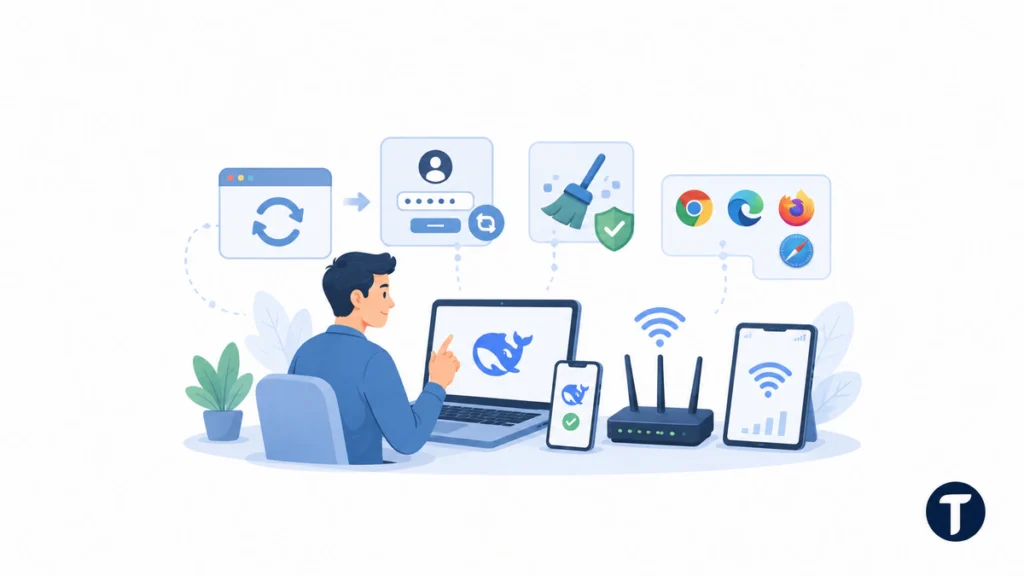
Once you have checked official status, move through the simplest DeepSeek troubleshooting steps. These fixes are safe, quick, and useful when the service itself appears normal.
For a fuller walkthrough, keep this DeepSeek server is busy guide bookmarked so you can compare status checks, local fixes, and API clues in one place.
Refresh Once, Then Stop Spamming Retry
A single refresh can resolve a loading interruption. Repeated refreshes, however, may create more requests and make the session look noisy. Refresh once, wait briefly, and then move to the next check.
Sign Out and Sign Back In
Expired sessions can cause confusing access errors. Sign out, close the tab, reopen DeepSeek, and log in again. If you use DeepSeek in a mobile app, update the app before testing again.
Clear Cache or Use a Private Window
Browser cache, old scripts, or extension conflicts can interfere with communication between your device and the service. Open a private window first. If that works, clear cache for DeepSeek or disable extensions that modify scripts, privacy settings, proxies, or cookies.
Switch Browser, Device, or Network
Try another browser such as Chrome, Edge, Safari, or Firefox. If possible, compare Wi-Fi with mobile data. If DeepSeek works on mobile data but not your home network, restart the router and check whether your DNS, firewall, VPN, or local network is blocking access.
Fix Network, VPN, and Regional Access Problems
Network issues can look like a server outage because the result is the same: DeepSeek cannot complete the request. This part of DeepSeek troubleshooting is about removing route problems before you blame the platform.
Turn off your VPN and retry. If that fails, try a different network without using a suspicious bypass service. VPN routing can trigger restrictions, slow connections, or unexpected regional behavior. If you must use a VPN for work, choose a stable region and avoid switching locations between prompts.
Corporate networks can also block AI tools. If you are using a work laptop, school Wi-Fi, or managed browser, check whether AI chat services are restricted by policy. A local block can produce connection failures even when the official DeepSeek system status is healthy.
Do not use random proxy sites to fix an AI chatbot outage. They can expose prompts, account data, or API keys. If the service is down, wait. If the network is blocked, use an approved connection.
Fix API Errors and Rate Limits
Developers should treat the DeepSeek server is busy message differently from casual web chat users. API applications create logs, retry loops, queue pressure, and customer-facing failures, so a structured response matters.
Check the Exact API Status Code
Do not rely only on the visible message. Log the HTTP status code, response body, request ID if available, model name, endpoint, and timestamp. A 429-style rate limit, a 5xx server error, and a bad request all require different fixes.
Use Backoff Instead of Constant Retries
If your app retries instantly, it can turn a temporary overload into a larger failure. Use exponential backoff, add jitter, cap retry attempts, and show a clear user message when the request cannot be completed.
Shorten Prompts and Reduce Batch Size
Long prompts, heavy context, or large batch jobs can increase the chance of failure during high demand. Try a shorter prompt, fewer concurrent requests, or a smaller payload. This will not fix a full AI chatbot outage, but it can help when capacity is tight or your request is too large.
Protect Production Workflows
If DeepSeek supports an important workflow, add a fallback plan. Teams that depend on AI tools should also document ownership, fallback rules, and acceptable-use decisions as part of an AI governance framework, especially when external services affect customer workflows. That could mean queueing requests, showing a temporary notification, switching to another approved model, or letting users save work and retry later. Compare behavior with ChatGPT, OpenAI API status, or another internal fallback only when that fits your privacy and compliance rules.
Common Causes of the DeepSeek Server Is Busy Error
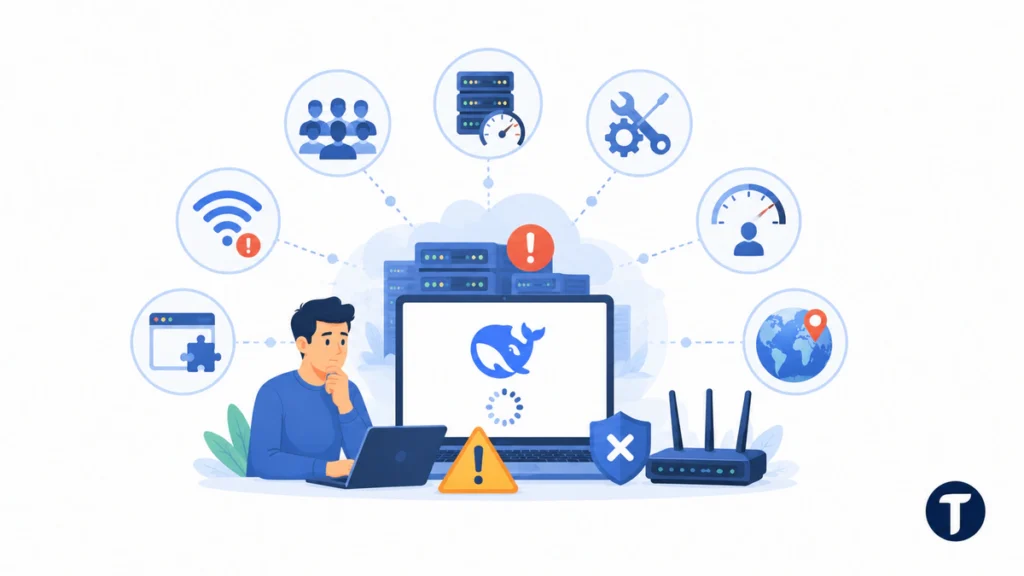
The DeepSeek server is busy warning can appear for several reasons. Knowing the cause helps you avoid the wrong fix.
- High demand: Many users send requests at the same time, especially when a model becomes popular.
- Server overload: DeepSeek’s servers may temporarily reject or delay requests to protect stability.
- Service disruptions: Maintenance, downtime, or a distributed denial of service event can affect access.
- Rate limits: API or account restrictions may slow or block repeated requests.
- Connectivity issues: Wi-Fi, DNS, router, VPN, or firewall problems may stop your device reaching DeepSeek.
- Browser problems: Cache, cookies, extensions, or old sessions may create local failures.
- Regional restrictions: Some routes, countries, or networks may behave differently from others.
The key point is simple: do not troubleshoot a local problem like an outage, and do not troubleshoot an outage like a local problem.
What to Do When Nothing Works
If every local fix fails and the official status page is unclear, document what you tested. Note your browser, device, network, account type, API endpoint, exact message, and time. Screenshots help, especially when you need to contact support or compare incidents later.
For web users, wait and retry during a quieter period. For developers, pause automated retries, preserve logs, and show users a calm message such as: “DeepSeek is temporarily unavailable. Your request was not lost. Please try again shortly.”
If your work is urgent, use a trusted fallback tool rather than unsafe shortcuts. Avoid sharing sensitive prompts with unverified third-party wrappers, random mirror sites, or proxy tools that promise to bypass the error.
DeepSeek Troubleshooting Checklist
Use this DeepSeek troubleshooting checklist when the same warning keeps returning after the first retry. It keeps the DeepSeek server is busy problem organised without turning every symptom into an AI chatbot outage.
- Status: Check whether the DeepSeek server is busy because the official status page shows degraded service. If DeepSeek server is busy across both web and API status rows, wait before changing local settings.
- Session: Continue DeepSeek troubleshooting by signing out, closing the browser, and logging back in.
- Browser: Test a private window when DeepSeek troubleshooting points to cache, cookies, or extensions. If only one browser says DeepSeek server is busy, treat it as a local browser problem.
- Network: Compare Wi-Fi with mobile data before calling it an AI chatbot outage. If mobile data works, DeepSeek server is busy may be a network-route symptom, not platform downtime.
- API: Treat a DeepSeek server is busy API response as a signal to log status codes and slow retries.
- Fallback: If the evidence confirms an AI chatbot outage, queue the work and retry later instead of using unsafe bypass tools. When DeepSeek server is busy for everyone, retry discipline is safer than workaround hunting.
Related questions
Why Does DeepSeek Keep Saying the Server Is Busy?
DeepSeek may be under heavy load, returning temporary server errors, limiting requests, or failing through your local connection. Check official status first, then test browser, network, account, and API clues.
Can I Fix DeepSeek Server Is Busy Myself?
You can fix it yourself only when the cause is local. Browser cache, expired login sessions, VPN routing, Wi-Fi problems, and API retry patterns are fixable on your side. A real AI chatbot outage requires waiting.
Should I Use a VPN to Fix DeepSeek?
Usually, no. A VPN can sometimes improve routing, but it can also create restrictions, blocks, or login risk. Turn the VPN off first. Use only trusted, approved network tools.
Is DeepSeek Down When I See This Error?
Not always. The message may appear during an outage, but it can also appear because your session, browser, network, prompt size, or API usage is causing the issue.
How Should Developers Handle This Error?
Developers should log status codes, apply exponential backoff, limit retries, reduce concurrency, queue non-urgent jobs, and give users a clear temporary-failure message.
What this means in practice
The DeepSeek server is busy error is easiest to handle when you separate official service status from local troubleshooting. Start with the status page, then run practical DeepSeek troubleshooting across your browser, network, account, and API setup. If the evidence points to an AI chatbot outage, save your work, avoid unsafe bypasses, and retry when DeepSeek’s systems recover. This keeps DeepSeek server is busy checks, DeepSeek troubleshooting, and AI chatbot outage decisions aligned.