Why Does My Internet Keep Going Out? 12 Common Causes & Easy Fixes
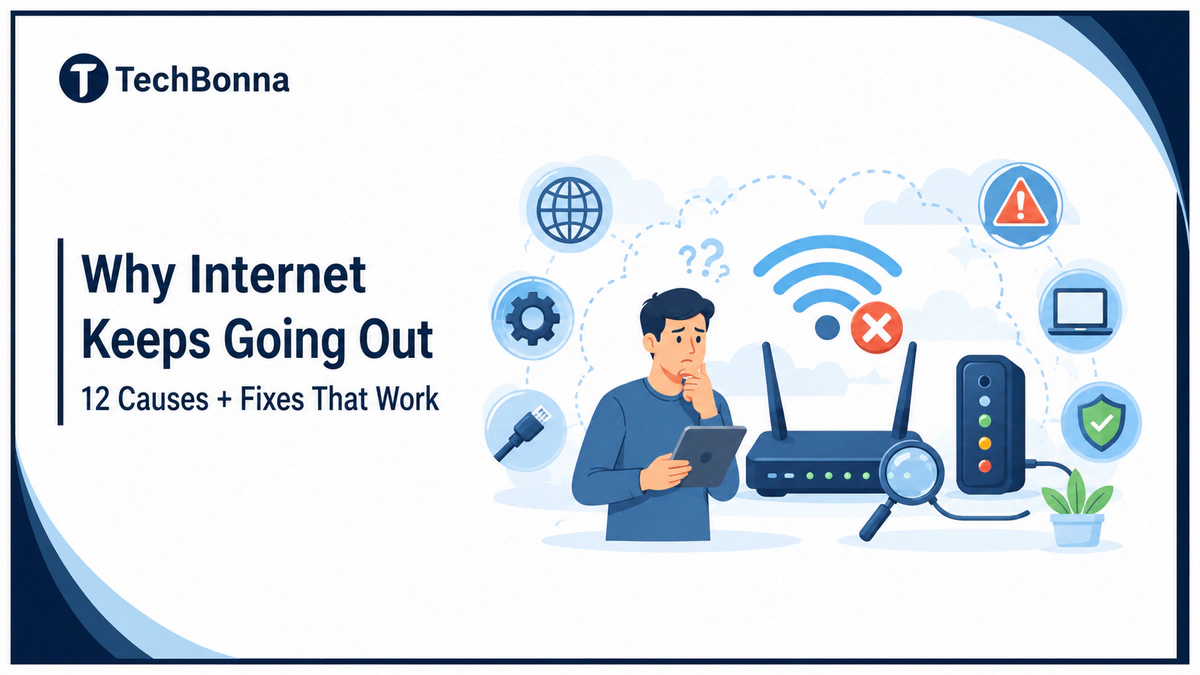
Table of Contents
Introduction
Internet keeps going out problems are frustrating because the cause can sit in several places at once: Wi-Fi, modem, router, device settings, cables, power, or your provider line. A simple restart may help for a few minutes, but it does not prove what failed.
This guide helps when Wi-Fi keeps disconnecting, when every device loses service, or when you need clear provider status checks before calling support. Follow the decision tree first, then work through the 12 typical causes and easy fixes.
Quick Answer
If your internet keeps going out, test one wired device, check whether Wi-Fi or the whole service is dropping, read modem and router lights before rebooting, look for provider service interruptions, inspect cables, and record the times of each dropout. If wired and wireless both fail, focus on the modem, line, power, or provider. If only wireless fails, fix router placement, interference, bands, or device settings.
Troubleshoot Internet Disconnection First
Step One: Check the Failure Layer
Start with the split that matters most: local Wi-Fi versus the wider internet connection. If a wired connection works while wireless fails, your internet service may be fine even though the experience feels broken. If wired and wireless devices fail together, the problem is probably modem, line, provider, power, or router-wide failure.
Step Two: Follow the Fastest Test Path
- Test one device close to the router.
- Test a second device to rule out one bad phone, laptop, or TV.
- Connect a laptop by wired if possible.
- Check modem lights, router lights, and the provider service-status page before restarting.
- Write down the time, duration, affected devices, and whether service returns by itself.
- If the problem happens daily, compare repair costs with options such as two internet providers in one house for backup or separate networks.
Diagnose Router, Modem, and Internet Connection Logs
What the Lights Tell You
When the internet keeps going out, look at the equipment before pulling the power plug. A modem that loses its online, sync, or broadband light points toward the provider line or signal. A router that stays online but loses Wi-Fi points toward wireless interference, firmware, overheating, or local network load.
What to Save From the Logs
Many routers and modems have an event log in the admin screen or provider app. Look for WAN disconnects, DHCP renew failures, DNS errors, cable signal warnings, DSL retrains, optical signal loss, or repeated reboots. These details help support identify the fault instead of asking you to restart equipment again.
Check Provider Outage and Line Faults
Use Provider and Neighbour Checks
provider status checks should happen before you replace hardware. Check your provider status page, mobile app, support feed, and neighbourhood reports. If nearby homes using the same provider fail at the same time, your router is probably not the main issue.
Use a Reliable Broadband Source
The FCC home broadband guide recommends checking equipment placement, wiring, router capability, and service factors when home broadband underperforms. That advice matters because line faults and weak home networking can look identical until you test them separately.
The 12 Common Causes and Easy Fixes
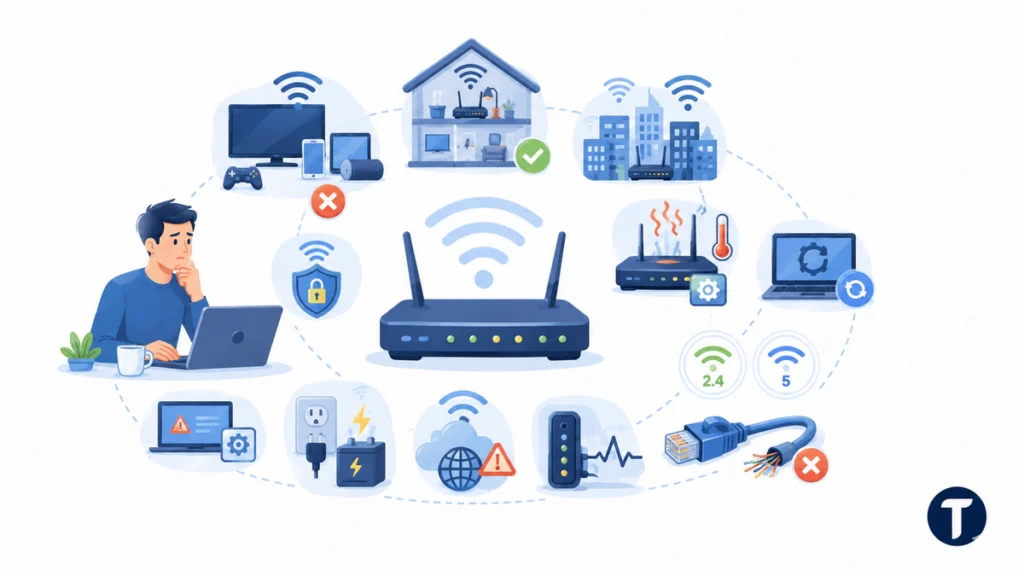
1. Too Many Devices Are Connected
When the internet keeps going out during streaming, gaming, uploads, or work calls, your network may be overloaded. Pause cloud backups, disconnect idle smart devices, and test again with only one or two active devices.
2. The Router Is in a Poor Location
If wireless keeps dropping in bedrooms, offices, garages, or upstairs rooms, move the router into an open central area. Keep it away from cupboards, thick walls, metal furniture, fish tanks, microwaves, baby monitors, and cordless-phone bases.
3. Radio or Signal Interference
Apartments, dense neighbourhoods, and shared buildings often have crowded wireless channels. Try the 5 GHz band for close devices, 2.4 GHz for longer range, or a mesh system if dead zones are consistent.
4. Router Overheating or Software Lag
A hot router can become unstable. Keep vents clear, raise the router off carpet, update software, and schedule a controlled reboot if the admin screen shows memory, uptime, or thermal problems. Replace equipment that reboots by itself.
5. Outdated Device Drivers
If one laptop drops while everything else works, update Wi-Fi drivers, network settings, and operating-system patches. Forget and rejoin the network, then test that device on another Wi-Fi network before blaming the provider.
6. The Wrong Wi-Fi Band
The 5 GHz network is faster but shorter range. The 2.4 GHz band travels farther but is busier. If wireless drops repeatedly far from the router, test both bands or separate the network names temporarily.
7. Faulty or Damaged Cables
Loose coax, DSL, fiber, network, or power cables can cause random failures. For wired runs, cable category and condition matter. Some users compare Cat6 and Cat7, but a clean, undamaged, properly terminated cable beats a higher label installed badly.
8. provider Outages or Weak Line Signal
If every device drops and modem logs show signal, sync, or WAN failures, focus on the service line. Save screenshots and times. Good provider status checks include provider status, modem logs, neighbourhood reports, and a wired test test.
9. Dust, Heat, and Bad Power
Dusty vents, overloaded power strips, loose adapters, and brief power flickers can reset network gear. Plug gateway and router into a stable outlet, avoid daisy-chained strips, and consider a UPS if dropouts follow storms or appliance use.
10. DNS or Device Configuration Problems
Sometimes the connection works but pages fail to load. Test another browser, flush DNS, try automatic DNS settings again, remove unused VPNs, and disable suspicious proxy settings. This is likely when messaging apps work but websites fail.
11. Weak Security or Unknown Users
Unwanted devices can slow a small connection. Change the Wi-Fi password, use WPA2 or WPA3, remove unknown clients, and update router admin credentials. Do not leave the default router password in place.
If the router offers it, WPA3 is the option to pick rather than leaving WPA2 in place out of habit. The Wi-Fi Alliance’s security programmes explain what each certification generation actually protects, which matters when an older smart plug or printer is the only reason a network is still running the weaker setting.
12. Old Equipment That Cannot Keep Up
Older routers may struggle with many phones, TVs, cameras, consoles, and smart speakers. If the internet keeps going out only when the house is busy, check router capacity, software support, and whether your modem is approved for your plan.
Diagnose by Connection Type
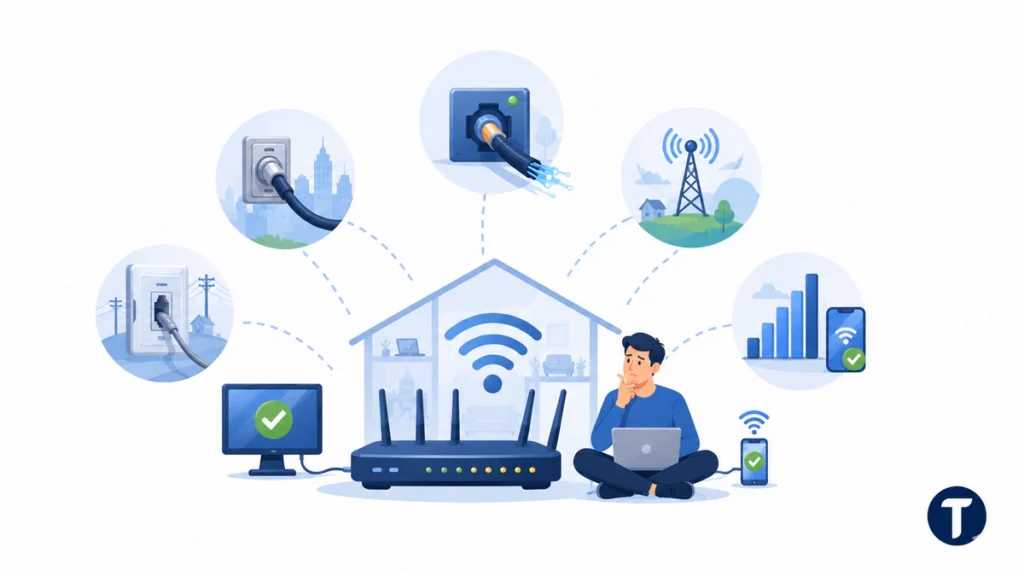
Cable, Fiber, DSL, and Fixed Wireless
| Connection Type | Most Useful Clue | What to Do |
|---|---|---|
| Cable | Signal levels, T3/T4 timeouts, shared-area service interruptions | Check coax, splitters, modem logs, and provider status |
| Fiber | Optical light, ONT status, power to the terminal | Check ONT power, router WAN, and provider service-status reports |
| DSL | Retrains, noise margin, phone-line crackle | Test filters, phone sockets, and line stability |
| Fixed wireless | Weather, antenna alignment, tower congestion | Check line of sight, provider status, and peak-time patterns |
| Cellular hotspot | Signal bars, data limits, tower load | Move location, test off-peak, and check plan throttling |
When It Is Wi-Fi, Not the Internet
If the wired test test stays stable while wireless drops repeatedly, stop calling it an provider fault. Improve placement, reduce interference, update software, split bands for testing, add mesh coverage, or replace a weak router.
When to Escalate to Your Provider
Escalation Criteria
Escalate when wired and wireless devices fail together, the modem loses sync, service-status checks show local faults, the same dropout time repeats, or logs show line errors. Ask the provider to check signal levels, optical light levels, provisioning, modem health, and neighbourhood faults.
What to Say to Support
Use evidence, not guesses. Say: “My internet keeps going out on wired and wireless devices. The modem online light drops at these times. I checked power, cables, reboot order, and your service-status page. Please check the line and gateway signal history.” That message is harder to dismiss than “my Wi-Fi is bad.”
Fix Internet Connectivity Issues
Router Settings and software
Use this section when basic quick fixes do not stop the disconnection pattern. Check router options for automatic channel selection, quality of service, DHCP lease time, and IP address conflicts. Install a software update from the manufacturer’s website, especially if the router software is old or the router’s software screen mentions bug fixes, security patches, or stability fixes.
Adapter, Channel, and Congestion Checks
On a Windows laptop, open Device Manager and check the network adapter and adapter drivers. On any device, test the wireless network beside the router, then farther away. Use a Wi-Fi analyzer to find a less congested wireless channel, compare 2.4 GHz and 5GHz, and keep the router in a central location for better signal strength and coverage throughout your home.
Speed, Plan, and Traffic Checks
Run an internet speed test during normal browsing, online gaming, video calls, and smart home use. If bandwidth overload or network congestion appears only when internet traffic is high, the fix may be a better router, a smarter internet plan, or traffic rules. Do not upgrade your internet plan until you know whether the internet connection drops because of local connectivity issues, a service fault, or too many active devices. One unstable internet connection can look like several separate internet issues until you test it under load.
Extra Terms to Troubleshoot
If you still need to troubleshoot, test one ethernet cable, one wifi device, and one wired laptop. Look for an outage notice, weak wireless signal, connection stability issues, disconnection issues, connection issues, and any disruption caused by a poor wireless connection. These troubleshooting steps can repair internet dropouts when common reasons include a bad adapter, service work, or a network path that drops repeatedly under load.
When Internet Problems Keep Returning
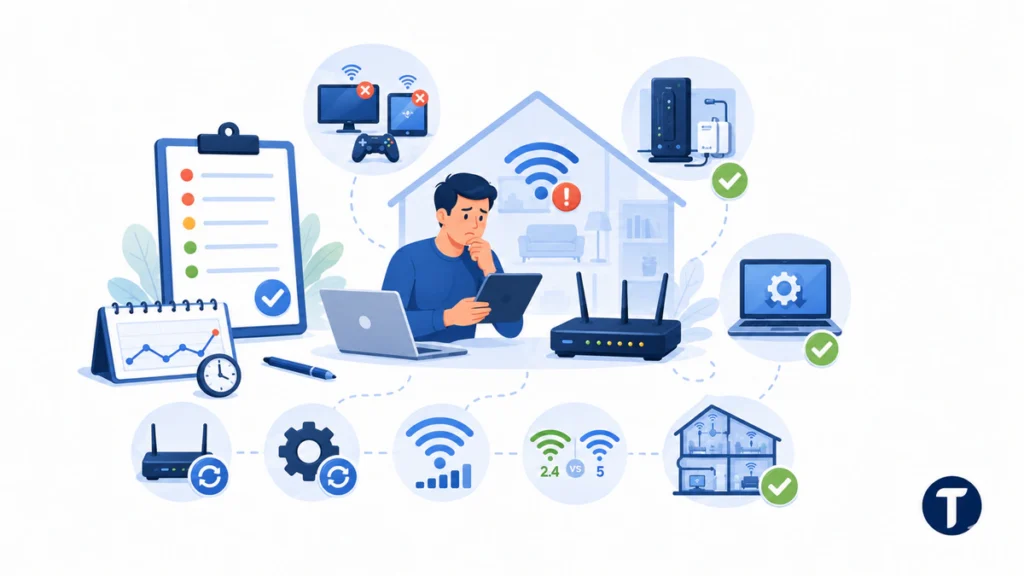
Frequent disconnections, intermittent disconnections, and repeated internet dropout warnings need a written log. Note whether the connection problems stop working on one device or across the whole home network. If the internet keep disconnecting message appears across wired and wireless devices, contact your ISP and ask them to review signal history, gateway registration, and internet service provider line faults so the internet connection can be checked beyond your home equipment.
For deeper checks, run one firmware update, check outdated firmware notes, review router firmware on the router’s firmware page, measure wi-fi signal, test one wi-fi channel, compare 2.4 GHz and 5 GHz, and confirm the wi-fi connection behaves the same after each change.
Frequently Asked Questions
Why Does My Internet Keep Going Out at Night?
Night dropouts can come from peak-time congestion, scheduled provider maintenance, overloaded household streaming, router overheating, or weak signal that becomes obvious when everyone is online. Check logs and compare wired test tests.
Why Does My wireless Keep Disconnecting but wired Works?
That usually means the internet line is working but the wireless network is weak. Check router placement, interference, band selection, software, device drivers, mesh coverage, and unknown devices on the network.
How Do I Know If It Is My Router or ISP?
If wired through the router stays online, suspect wireless. If the gateway loses service lights or a direct wired test test fails, suspect gateway, line, power, or provider. Provider service-status pages and gateway logs help confirm the pattern.
Should I Replace My Router First?
Replace the router only after basic tests. If provider status checks, gateway lights, and wired test tests point to the provider line, a new router will not fix the service fault.
How Do I Stop My Internet From Dropping Out?
Stop random dropouts by testing wired service first, restarting in the correct order, updating equipment, moving the gateway, checking provider status, and saving logs. If the internet connection still fails, escalate with timestamps.
How Do I Fix My Unsteady connection?
Fix an unsteady connection by removing weak wireless coverage, damaged cables, overheating equipment, overloaded devices, and line problems one at a time. Do not change every setting at once because that hides the real cause.
Why Won’t My wireless Stay Connected?
wireless may not stay connected because of distance, signal noise, crowded channels, old adapter software, weak security, or gateway overload. If only wireless fails, focus on the wireless network rather than the provider line.
Can a Bad wired Cable Cause Internet Dropouts?
Yes. A damaged network lead can make one device, access point, gateway uplink, or gateway connection unstable. Replace suspect cables with a known-good lead before changing expensive equipment.
Final Thoughts
When your internet keeps going out, do not rely on random reboots. Separate wireless from line faults, check gateway logs, run provider status checks, test cables, and record patterns. A stable internet connection needs clean wiring, and a repeatable online connection test should confirm the fix, good gateway placement, reliable power, and a service line that stays synced. If wireless drops repeatedly but wired service is stable, fix the local wireless network. If everything drops together, escalate with logs, timestamps, and wired-test evidence for a more stable online connection.