Can’t Open OST File? Here’s a Free Way to Convert It to PST
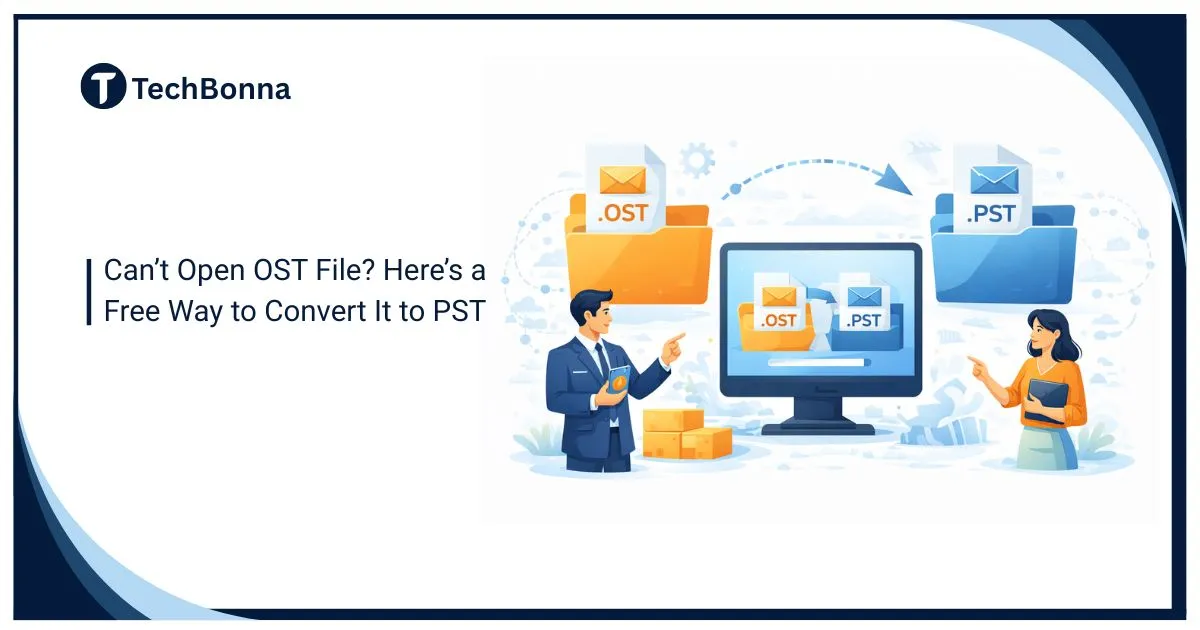
Another name for work communication is MS Outlook! No one can deny this fact. Like any other refined software product, this application also encounters technical friction. One of the most frequent errors faced by its users is the “OST file cannot open” issue. This error is quite common. It not only halts productivity but also risks the loss of sensitive data. Experts strongly advocate to look out for reasons for this issue. In some cases, the cause of the issue is data file (.ost) corruption. Sync issues with the Exchange Server can also lead to this error. In many cases, the root cause of this error is an oversized file (.ost). The best way to overcome this frustrating scenario is to convert an encrypted OST to some portable format like PST.
This guide titled “Can’t Open OST File? Here’s a Free Way to Convert It to PST,” will explore why OST files become inaccessible. It will also provide a step-by-step tutorial on a free, manual way to convert an OST to PST. But such conversion is not an easy cakewalk. It works in certain conditions. It requires Exchange Server connectivity. It also needs an active Outlook profile. Manual ways fail in many cases. This is where you need some advance OST to PST converter tool.
Factors That Lead to “OST File Cannot Open” Issue:
- Sync between Outlook and the Exchange is not happening (owing to downtime/ shutdown)
- When the Outlook data file (.ost) is already being used by another application
- In the event of an oversized OST
- A weak or unstable connection to the MS Exchange Server
Can’t Open OST File? Here’s a Free Way to Convert It to PST:
In this part of the post, we will shed light on free solutions available to convert Outlook data file (.ost) to PST. Always initiate any process after taking the backup.
Note: These built-in functionalities will work in following conditions:
- When the Microsoft Exchange Server connection is active
- When the Outlook data file (.ost) is in a healthy stage
- The user has the access to the Outlook account
Method 1: Conversion Via the Import/Export Feature: A user can utilize this built-in functionality. Follow the below instructions:
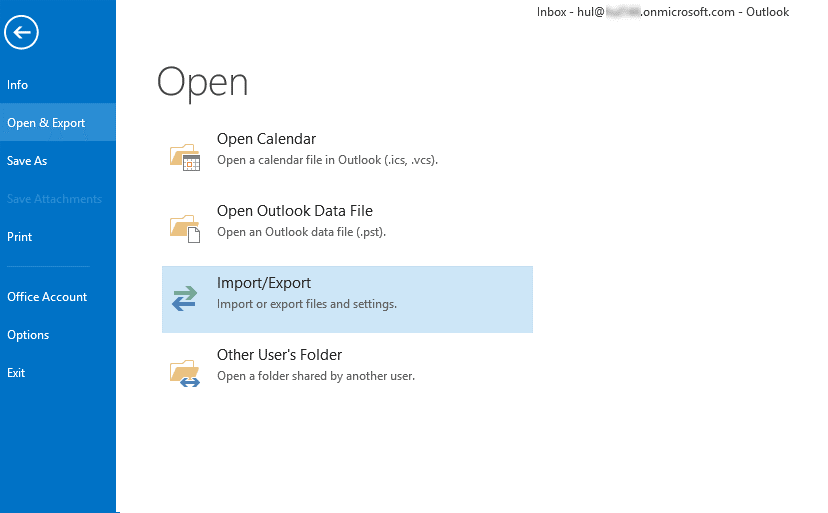
- Browse File
- Navigate to Open & Export
- Press Import/Export option
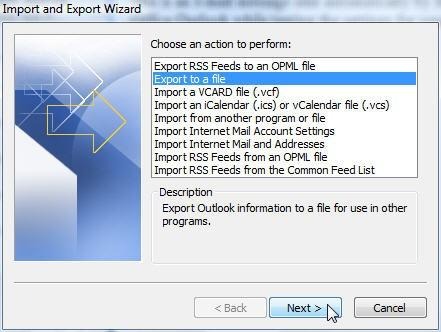
- The screen prompt will ask to choose an action
- Choose Export to a file
- Then press Next
- A dropdown will appear, select ‘Outlook Data File (.pst)’
- After this press ‘Next’
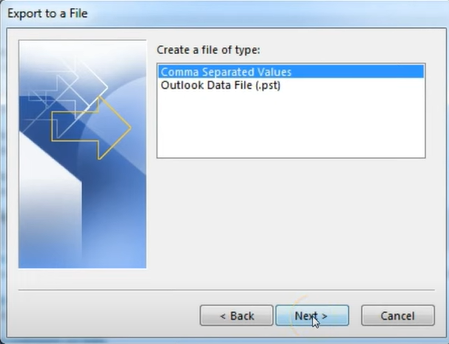
- Now the user needs to select email message folders
- Check the Include Subfolders option as well., press Next
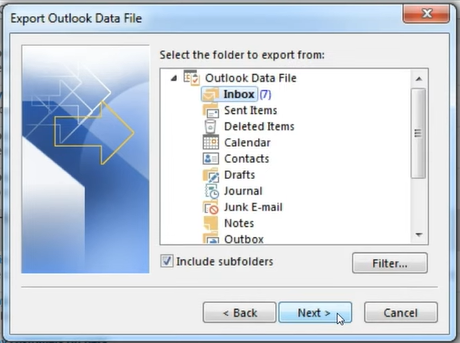
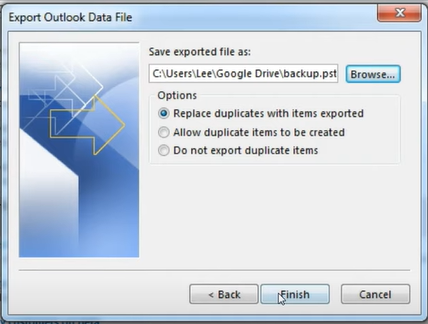
- Now provide the file location
- Also check “Replace duplicate ….exported”
- Click Next
Method 2- The Archiving Method: It is another option available to users. This method ensures mailbox content transfer at regular intervals. Follow the below steps:
- Launch MS Outlook
- Browse ‘File’
- Press the ‘Archive’ option
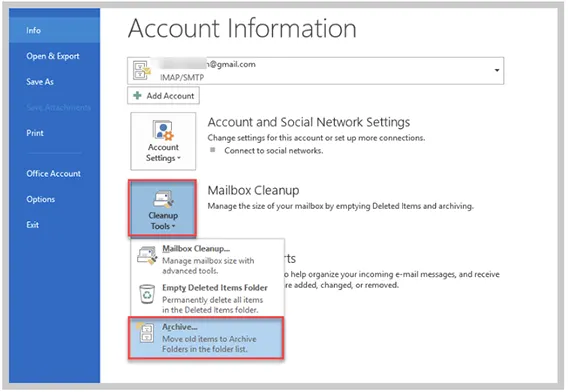
- A screen will appear
- Select the desired File or Folder
- Go to the folder where such archived file is to be saved
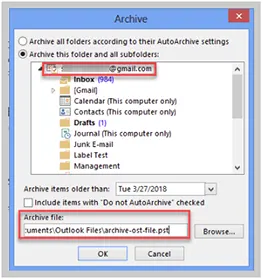
- Conclude by hitting on the ‘Finish’ tab
Method 3: Drag and Drop Mailbox Items: The user can also use this feature for the same. It is the best method when a few folders are required to be converted. Follow below instructions:
- Launch MS Outlook
- Browse both data files (.ost and .pst)
- Now select the desired folders (that need to be moved)
- Drag & drop the chosen file folders into the PST file
When Free Methods Fall Short?
As discussed earlier, the above methods work in certain fixed scenarios. They may fail in certain situations. Some of them are discussed below:
- The Exchange server is permanently offline
- The Outlook profile has been deleted by an administrator
- If the OST is corrupted
The Need for an OST to PST Converter: The above methods involve multiple manual steps. They are not only time consuming but also pose risk to data safety. Experts strongly argue for a professional OST to PST Converter. They see multiple advantages of using such software. Firstly, it is extremely easy to use. Secondly, it uses advanced algorithms to bypass the need of active Exchange Server as well as Outlook installation. Thirdly, it can easily handle an oversized OST. What more? Tools like Stellar Converter for OST maintain folder hierarchy as well. This tool also bypasses the need of the MAPI profile requirement.
It helps to know why the file exists in the first place. Microsoft’s Cached Exchange Mode documentation explains that Outlook keeps a local copy of the mailbox in an offline data file and synchronises it with the server, which is exactly why the file becomes unusable once that server relationship breaks.